October 1, 2026 · asma
Google Tag Manager Tutorial: Getting Started with Website Tags
Learn how to set up Google Tag Manager, configure tags, triggers, and variables, track conversions, and follow best practices for testing, security, and tag management.

What Is Google Tag Manager and Why It Matters
Google Tag Manager is a tag management system that helps teams add, update, and manage tags without repeatedly editing site code. Instead of asking a Software Engineer to hard-code every pixel, analytics script, or JavaScript tags snippet, marketers and analysts can control website tags through a user-friendly interface. You can Start for free and create a GTM setup for a Website, mobile apps, or server-side implementation.
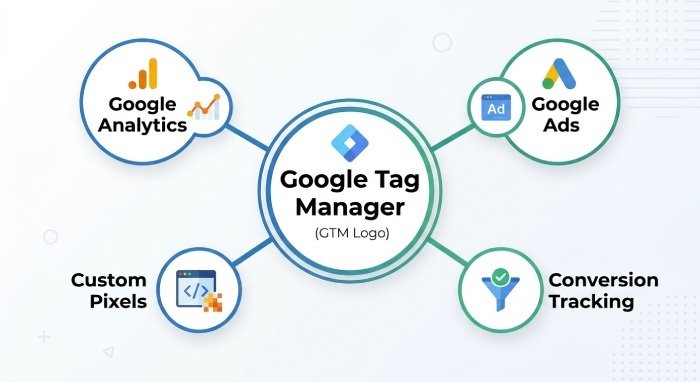
A tag management system matters because modern sites rely on many website tags: Google Analytics, Google Ads, Floodlight, remarketing pixels, conversion tracking scripts, analytics tools, advertising tools, and third-party tags from a third-party vendor. Without a central container, tag deployment becomes slow, risky, and difficult to audit. Google Tag Manager lets an organization manage tags in one place, organize tags by purpose, and improve marketing optimization without cluttering the codebase.
Google positions Tag Manager as part of its broader Marketing Platform, and its value is clear in use cases such as Airbnb improving vendor data collection through better tag governance. The Google Marketing Platform’s Tag Manager overview explains how the platform supports faster tag deployment, collaboration, and better performance.
How Google Tag Manager Works: Tags, Triggers, and Variables
Google Tag Manager works by placing a container snippet on your site. That container loads from Tag Manager servers and controls which website tags fire, when they fire, and what data they receive. In practice, the tag management system separates tag configuration from site code, which makes it easier to migrate tags, test changes, and publish tags safely.
Tags
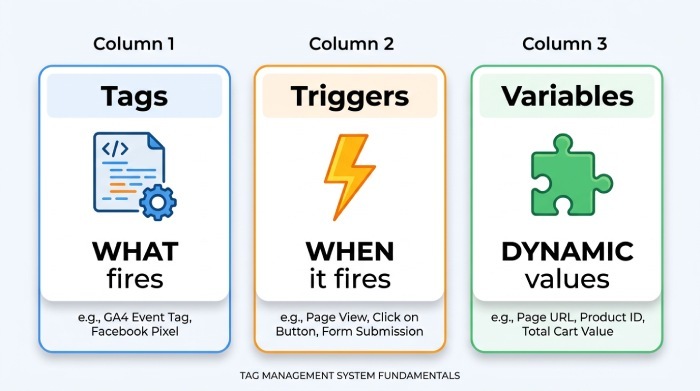
Tags are the scripts or instructions you deploy through the container. Common supported tags include Google Analytics, Google Ads, Floodlight, and many third-party tags. Google Tag Manager also supports tag templates, vendor templates, and custom templates, including options from the Community Template Gallery. These templates reduce the need to paste raw JavaScript tags and help standardize tag configuration.
For more technical implementation details, Google provides developer documentation for Tag Manager, including guidance on the data layer, mobile app tagging, Android, iOS, and advanced options such as the Tag Manager API and REST API.
Triggers
Triggers define when tags fire. For example, triggers can fire a Google Analytics event when a user clicks a button, submits a form, watches a YouTube video, or lands on a thank-you page. Google Tag Manager includes auto-event triggers that detect common interactions without requiring custom code for every event.
Good triggers are essential to accurate conversion tracking, remarketing, and dynamic remarketing. Poorly defined triggers can duplicate conversions, miss key site analytics events, or fire advertising tools on the wrong page. This is why tag deployment should always include preview testing and error checking before release.
Variables
Variables store dynamic values used by tags and triggers. For example, variables can capture page URLs, click text, form IDs, transaction values, user status, or custom data layer values. In a strong tag configuration, variables make your container flexible, reusable, and easier to maintain.
Variables also help teams manage tags across different workspaces. Workspaces allow parallel edits, which supports collaboration when multiple people are updating website tags. For larger companies, workspaces, version control, access controls, and user permissions are critical for enterprise collaboration.
Setting Up Your First Google Tag Manager Account and Container
To begin, create a Google Tag Manager account for your company or organization, then create a container for your site, Android app, iOS app, or server-side tagging project. The account is the top-level structure, while the container holds your tags, triggers, variables, workspaces, and container versions.
Create the Account
Use a clear naming convention for the account, such as the organization or brand name. If you manage tags for multiple sites, keep each property in a separate container where appropriate. This makes it easier to organize tags, assign access controls, and reduce mistakes during tag deployment.
Install the Container
After creating the container, Google Tag Manager provides snippets to place in your site code. Follow the Tag Manager Help installation guidance to add the code in the correct locations. Once installed, the container becomes the central delivery mechanism for website tags.
Configure Permissions and Workspaces
Before adding many website tags, configure user permissions carefully. Limit publish access to trusted users, allow editors to work in draft workspaces, and use access controls to protect production containers. Workspaces are especially useful when different teams are building separate tag configuration updates, such as one team adding Google Ads remarketing while another configures Google Analytics events.
For larger teams, agencies such as SeoWorx can help develop governance practices that keep analytics, advertising, and tag management workflows organized and consistent.
Adding Common Website Tags, Including Google Analytics and Conversion Tracking
Most new Google Tag Manager implementations begin with Google Analytics and Google Ads. A typical Google Analytics tag tracks page views and events for site analytics, while Google Ads tags support conversion tracking, remarketing, and dynamic remarketing. Floodlight tags are also common for advertisers using Google’s enterprise Marketing Platform products.
To add a tag, choose a template, enter the required ID or configuration values, assign triggers, and save the tag configuration. For example, a Google Ads conversion tracking tag may fire only on a purchase confirmation page, while a Google Analytics event tag may fire on button clicks detected through auto-event triggers.
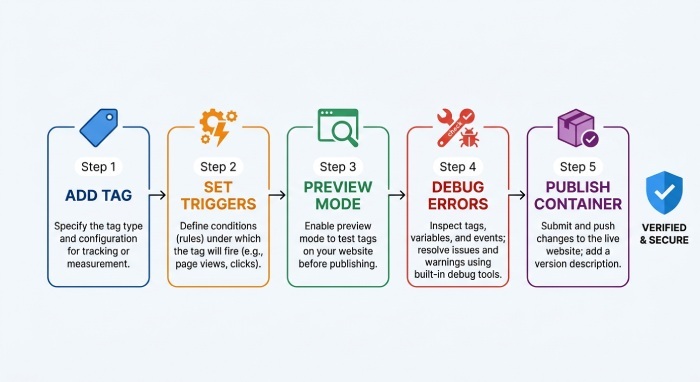
A practical tag deployment workflow looks like this:
- Add or choose the right tag template.
- Configure variables such as conversion ID, value, currency, or event name.
- Attach triggers that match the desired user action.
- Use preview mode and debug tools to validate behavior.
- Publish tags only after testing.
This approach helps maintain performance and reduces the risk of bloated website tags. For a deeper operational explanation, see this mParticle explanation of how GTM works, which describes how tags, triggers, and data routing fit together.
Google Tag Manager can also support server-side tagging, where browser requests are routed through a server container before reaching vendors. This model can improve enhanced security, reduce client-side load, and give teams more control over vendor data collection.
Best Practices for Testing, Publishing, and Managing Tags
Strong Google Tag Manager governance depends on testing, documentation, and disciplined release management. Never publish tags immediately after creating them. Use preview mode, debug tools, and Chrome-based testing workflows to confirm that triggers fire correctly and variables return expected values. Resources such as Analytics Academy, Tag Manager Help, MeasureSchool, and this Semrush Google Tag Manager guide can help teams build repeatable QA habits.
The best way to manage tags is to treat the container like production software. Use clear names for tags, triggers, and variables. Maintain notes in container versions. Separate experimental changes into workspaces. Apply version control before major releases. If something breaks, container versions let you roll back quickly.
For multi-environment testing, use separate environments for development, staging, and production. This prevents incomplete tag configuration changes from reaching live users. It also improves collaboration because analysts, marketers, and engineers can review tag deployment before final approval.
Security features should not be overlooked. Restrict custom HTML, review custom templates, verify third-party tags, and assign user permissions based on responsibility. When using the REST API or Tag Manager API, protect credentials and follow internal governance policies.
Finally, publish tags in small batches. A clean tag management system should make it easier to manage tags, not harder. By combining workspaces, access controls, preview testing, and disciplined tag configuration, Google Tag Manager becomes a reliable foundation for site analytics, advertising tools, conversion tracking, and long-term marketing optimization.